WP Security Ninja
What a WordPress vulnerability is, and how to check yours
A known flaw in core, a plugin, or a theme, tied to a version range. This hub shows how to read a CVE or advisory. We do not host a public dump. Security Ninja's free scanner is the live check against what you actually run.
- ✓ Version range first
- ✓ Plugins, themes, and core
- ✓ Scanner is the live check
Four steps before you panic
A version string in a search query is a hint. Confirm the install, then decide.
-
Confirm the version
Check core, plugins, and themes on the server, including deactivated leftovers still on disk. wp-admin Updates or WP-CLI, not memory.
-
Read the advisory
Look for the component, affected range, impact, and whether a fixed release exists. Headlines skip the range you need.
-
Match your install
You are only in scope if the installed version sits in that range. A patched later release is not the same bug.
-
Patch or remove
Update to the fixed release, or delete abandoned code. Then re-scan. Do not leave vulnerable files sitting deactivated.
The live check is the scanner, not this page
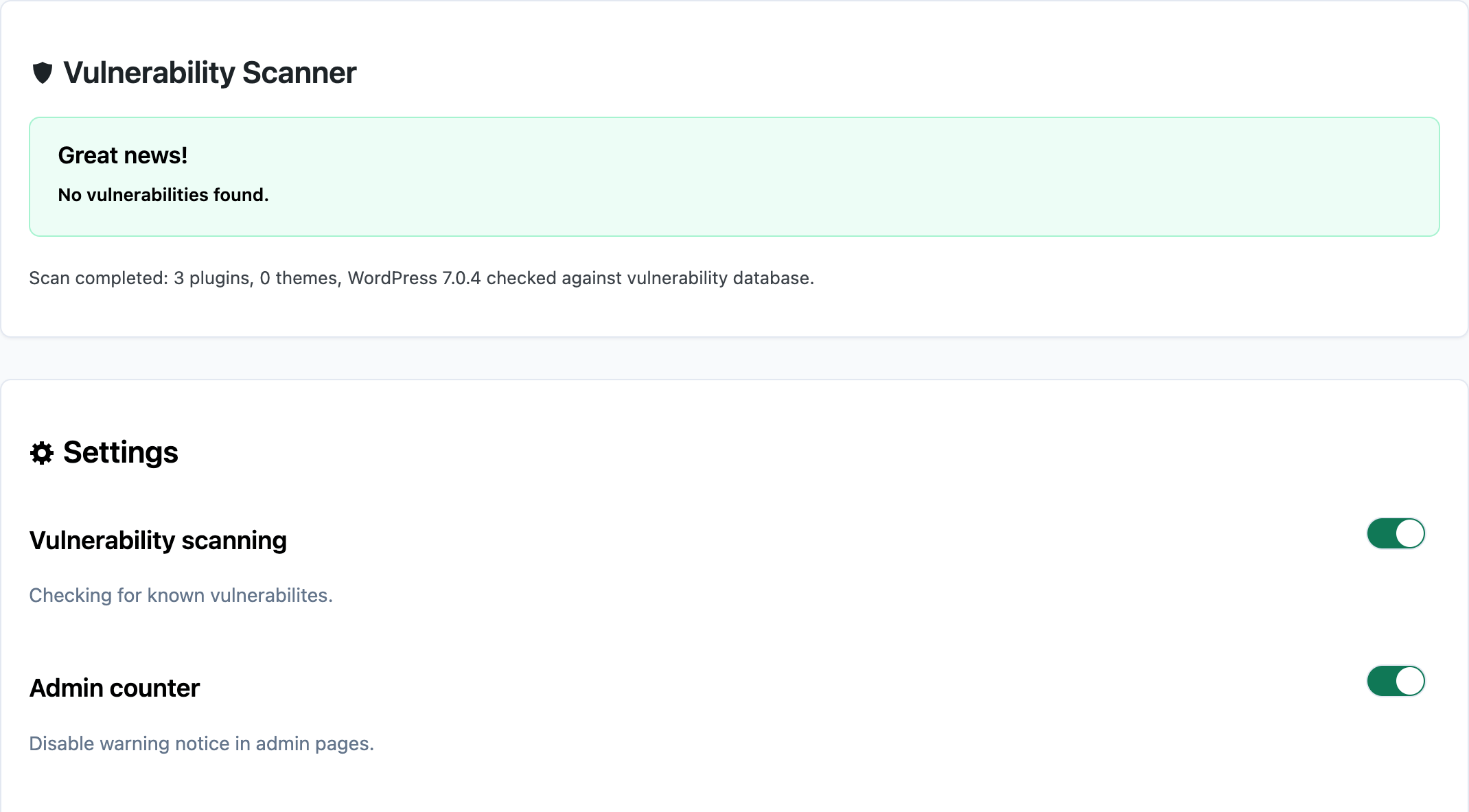
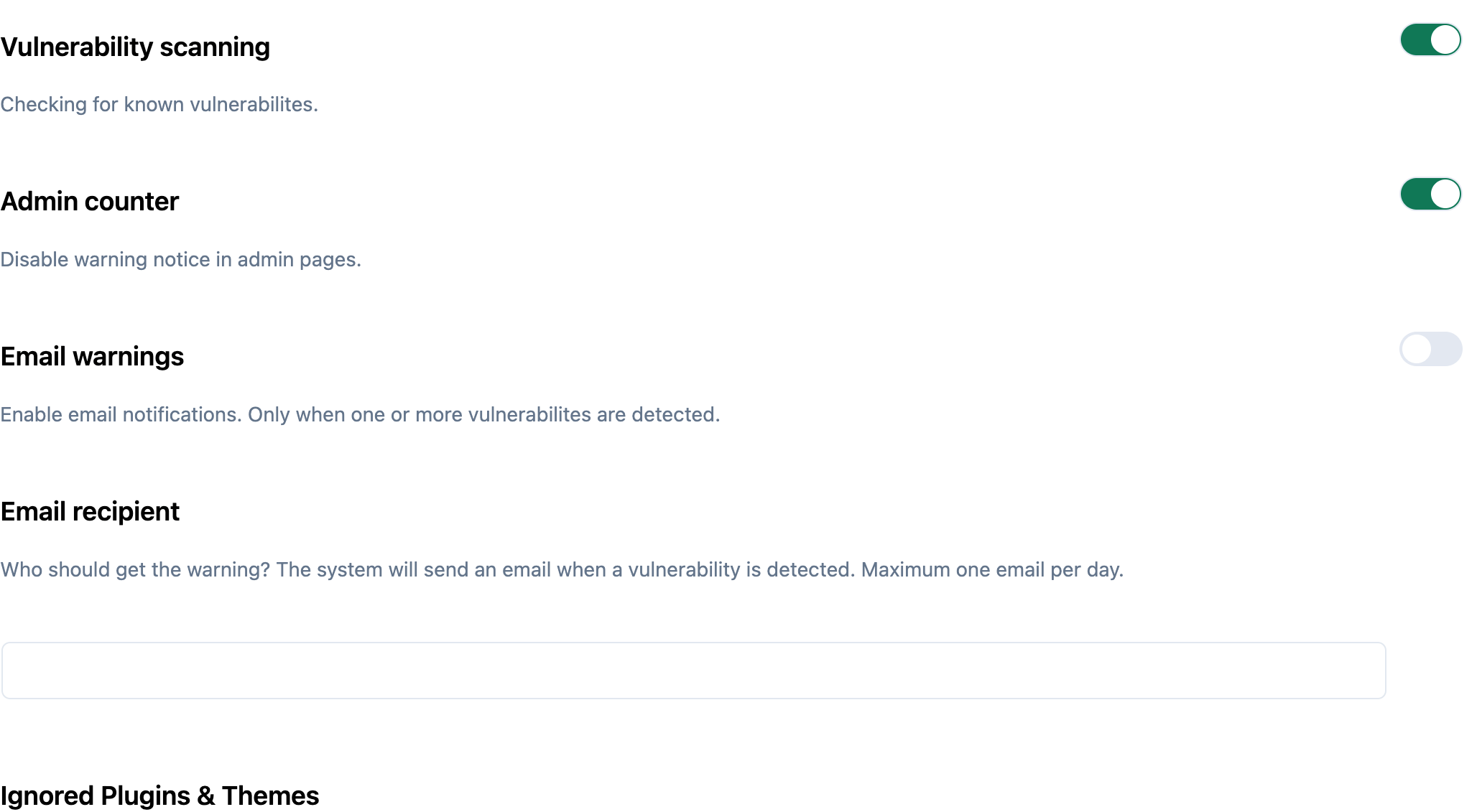
Security Ninja compares what is installed against known issues so you are not hunting spreadsheets. This hub is how to read a hit. The scanner and the vendor advisory stay the source of truth.
- ✓ Plugins, themes, and WordPress core
- ✓ CVE and known-issue matches on the versions you run
- ✓ Free on every Security Ninja install
What people actually look up
Most WordPress vulnerability work is plugin and theme advisories. Core headlines get the clicks. Abandoned leftovers get the breaches.
Plugin and theme CVEs
Form plugins, SEO tools, membership REST routes, file uploads. Confirm the slug and the version on disk, not only the marketing name.
Core version lookups
6.7.x, 6.8.x, 6.9.x, 7.0.x: same loop. Confirm the exact core version, open the WordPress.org security release, match the affected range.
No-fix and abandoned code
If the advisory says no patch, remove the component. Deactivated plugins can still be a risk while their files remain on the server.
What is a WordPress vulnerability?
A WordPress vulnerability is a known security flaw in WordPress core, a plugin, or a theme. Advisories almost always name an affected version range and, when one exists, a fixed release. The job is simple: confirm what is on disk, decide if you are in that range, then update, replace, or remove the component.
That is different from malware already on the site. A vulnerability is a documented weakness. A compromise is what happens when someone uses it, or another path, and leaves something behind. Start with the known issue. Clean malware only if the site is already odd.
We do not host a public dump of every advisory. A vulnerability database is useful when it helps you decide what to patch today. Records usually include a CVE id, affected versions, and whether a fix shipped. This hub is how to read those fields for the sites you actually run. The live check is the free WordPress vulnerability scanner in Security Ninja, which compares your installed versions against known issues.
If you landed here with a version string (6.7.1, 6.9.x, WordPress 7), treat the number as a lookup, not a panic button.
Looking up a core version
Confirm the installed version in wp-admin under Updates, or with WP-CLI (wp core version). Then open the matching WordPress core security release on WordPress.org news and read the affected range, not only the headline.
A patched later release in that line is not vulnerable to a bug fixed earlier. Partial updates happen after failed FTP uploads, so compare files if wp-admin and the filesystem disagree.
Run the vulnerability scanner anyway. Core CVE headlines often distract from the plugin that is actually exploitable on your stack. For recent high-impact core issues, see the wp2shell advisory and post-update checks.
Plugin advisory patterns
Most day-to-day WordPress vulnerability work is plugin and theme advisories, not core drama.
| Pattern | What to check on your site |
|---|---|
| Popular form plugin XSS | Installed even if you only use it on one page |
| SEO / redirect plugin RCE | Often installed on every site in an agency fleet |
| Membership / REST route auth bypass | Custom endpoints with weak permission callbacks |
| File upload in a gallery or form addon | Uploads folder and execution blocking |
| Abandoned plugin, no fix | Remove from disk, not only deactivate |
When Patchstack, Wordfence, or a vendor publishes a mass advisory, run the scanner first, then read the advisory for version ranges. Marketing tweets rarely include the range you need.
Cross-check: vendor changelog, CVE/NVD when present, scanner output, and filesystem version (wp plugin list or the plugin header in wp-content/plugins/).
Common types in WordPress context
| Type | What it means in practice | Typical first move |
|---|---|---|
| XSS | Attacker script runs in a browser session (admin or visitor) | Update; review forms and unescaped output |
| SQL injection | Attacker influences database queries | Update or remove; treat as urgent if unauthenticated |
| RCE | Attacker runs code on the server | Update or remove immediately; scan for malware |
| Auth bypass / privilege escalation | User gains access they should not have | Patch; audit users and sessions |
| CSRF | Tricks a logged-in user into an action | Update; check nonces on custom forms |
| File upload abuse | Dangerous files land in uploads or elsewhere | Patch; block PHP in uploads; scan files |
| Info disclosure | Secrets, paths, or user data leak | Patch; rotate anything exposed |
Related reading: preventing WordPress XSS attacks, common WordPress security issues, and plugin security risks. Absolute “X% of all vulnerabilities are XSS” marketing stats go stale quickly. Use the type labels to understand impact, not as eternal percentages.
CVSS cheat sheet
CVSS scores from FIRST.org run from 0.0 to 10.0. A common reading of CVSS v3.x bands:
| Score | Band | Practical triage |
|---|---|---|
| 9.0-10.0 | Critical | Act now, especially if unauthenticated or RCE |
| 7.0-8.9 | High | Patch on an urgent schedule |
| 4.0-6.9 | Medium | Schedule soon; do not ignore on internet-facing sites |
| 0.1-3.9 | Low | Batch with other maintenance unless chained with something worse |
Also read the vector, not only the number: privileges required, user interaction, attack complexity, whether a public exploit exists, and whether the issue stays inside one component or affects the whole site.
A medium unauthenticated issue on a popular plugin can outrank a high bug that only affects a rare admin-only screen you do not use.
How to read a WordPress CVE record
When you open a CVE or ecosystem advisory, look for these fields first:
- Component: which plugin, theme, or core package
- Affected versions: inclusive ranges, not just “old”
- CVE / advisory ID: so you can cross-check NVD, the vendor, and your scanner
- Severity / impact: what an attacker can do
- Fix: patched version, or “no fix; remove”
- Prerequisites: does the attacker need an account, or is it unauthenticated?
If a write-up skips versions or a fix path, treat it as incomplete until you confirm against the vendor advisory or a trusted tracker.
Where to verify
Cross-check important hits against at least two of:
- Vendor / plugin author advisory or changelog
- A CVE tracker such as the National Vulnerability Database (NVD) when a CVE id exists
- Your scanner’s finding details (component + version)
- Reputable WordPress ecosystem vulnerability databases used by researchers and tools
Treat absolute “we track N vulnerabilities” claims with skepticism unless you can see methodology. Counts change daily and marketing pages inflate them.
Turn a hit into a short report
For each finding on a site you manage, write down:
- Site name and environment (production vs staging)
- Component and installed version
- Advisory or CVE id
- Confirmed in affected range? Yes / no
- Exposed to the internet? Auth required?
- Action: update / replace / remove / accept temporary risk
- Done date and who owns the follow-up
That beats a screenshot of a red badge. It also keeps client work honest when several sites share the same abandoned plugin.
Patch sooner when more of these are true: unauthenticated or low-privilege path, RCE / SQLi / auth bypass, plugin still on disk, high-traffic or payment site, public exploit already out. You can wait a short, scheduled window when the issue needs a rare admin role, has no known exploit, and a tested update is hours away on staging. Wait forever is not a strategy.
Worked example
Scanner reports Plugin X 3.2.0 is vulnerable to unauthenticated SQLi; fixed in 3.2.1.
- Confirm Plugin X 3.2.0 is on the site, including if it is deactivated
- Read the advisory: affected range, fix version, prerequisites
- Update to 3.2.1 on staging, then production; or remove if unused
- Apply the update; delete the plugin if you are replacing it
- Re-scan vulnerabilities and run a malware scanner and core integrity check if the window was long enough for abuse
- Review users, admin emails, and scheduled tasks for surprises
- Harden the path that made exploitation likely: logins, firewall, backups
If the advisory says “no fix,” remove the component.
Why plugins dominate
WordPress core is maintained by a large project and ships security releases on a predictable cadence. Most public WordPress ecosystem vulnerabilities show up in third-party plugins and themes because that is where most custom code and attack surface live.
Themes matter too, especially page builders and “null” theme packs. Core is rarely the first place opportunistic attackers look when an old plugin sits unpatched.
Related reading
Frequently asked questions
What is a WordPress vulnerability? +
A WordPress vulnerability is a known security flaw in WordPress core, a plugin, or a theme, usually tied to a specific version range. It is a documented weakness an attacker can try to use, not a guarantee that your site is already hacked. Confirm the version on disk, then update, replace, or remove the component.
How do I check my WordPress site for vulnerabilities? +
Run a vulnerability scanner against the plugins, themes, and core versions you actually have installed, including deactivated plugins still on disk. Confirm each hit against the advisory, then update to the fixed release or remove abandoned code. Security Ninja's free vulnerability scanner does that comparison for you. A scanner finds known issues. It does not invent zero-days.
What is a CVE? +
CVE stands for Common Vulnerabilities and Exposures. It is a public ID for a known security issue. A WordPress CVE usually points at a specific plugin, theme, or core version range plus a description of impact and a fixed release when one exists.
What is a WordPress CVE database? +
A WordPress CVE database (or vulnerability database) is a searchable set of known issues for WordPress core, plugins, and themes. You use it to see whether something installed on your site matches an affected version, then update, replace, or remove that component. This page is a reading guide, not a dump of every advisory.
What should a WordPress vulnerability report include? +
At minimum: the component name, installed version, affected range, CVE or advisory ID if available, impact in plain language, and the next action (update, replace, remove, or investigate). A report without versions or a fix path is incomplete.
What does a CVSS score mean for WordPress? +
CVSS is a 0-10 severity scale. Use it as a triage hint, not a destiny score. Critical and high issues with a public exploit and an unauthenticated path usually jump the queue. Always confirm your installed version is in the affected range before you panic.
Scan the versions you actually run
The free plugin includes the vulnerability scanner plus 50+ security tests. Pro adds alerts, malware scanning, and Cloud Firewall while you patch.
Download Security Ninja