How to enable 2FA on WordPress
Enable two-factor authentication on WordPress: authenticator app or email codes, which roles must enroll, grace period, and how to recover a lost phone.

Enable two-factor authentication on WordPress: authenticator app or email codes, which roles must enroll, grace period, and how to recover a lost phone.
Two-factor authentication on WordPress means the password is not enough. After the usual login, the user enters a short code from an authenticator app or email. Stolen or reused passwords stop being a free ticket into wp-admin.
This is the how-to. Product overview: two-factor authentication. The broader playbook is the WordPress login security guide. Short definition: 2FA.
2FA is a Pro feature. Free still covers tests, vulns, and core integrity.
Do this as an administrator.
0 means required-role users cannot skip setup.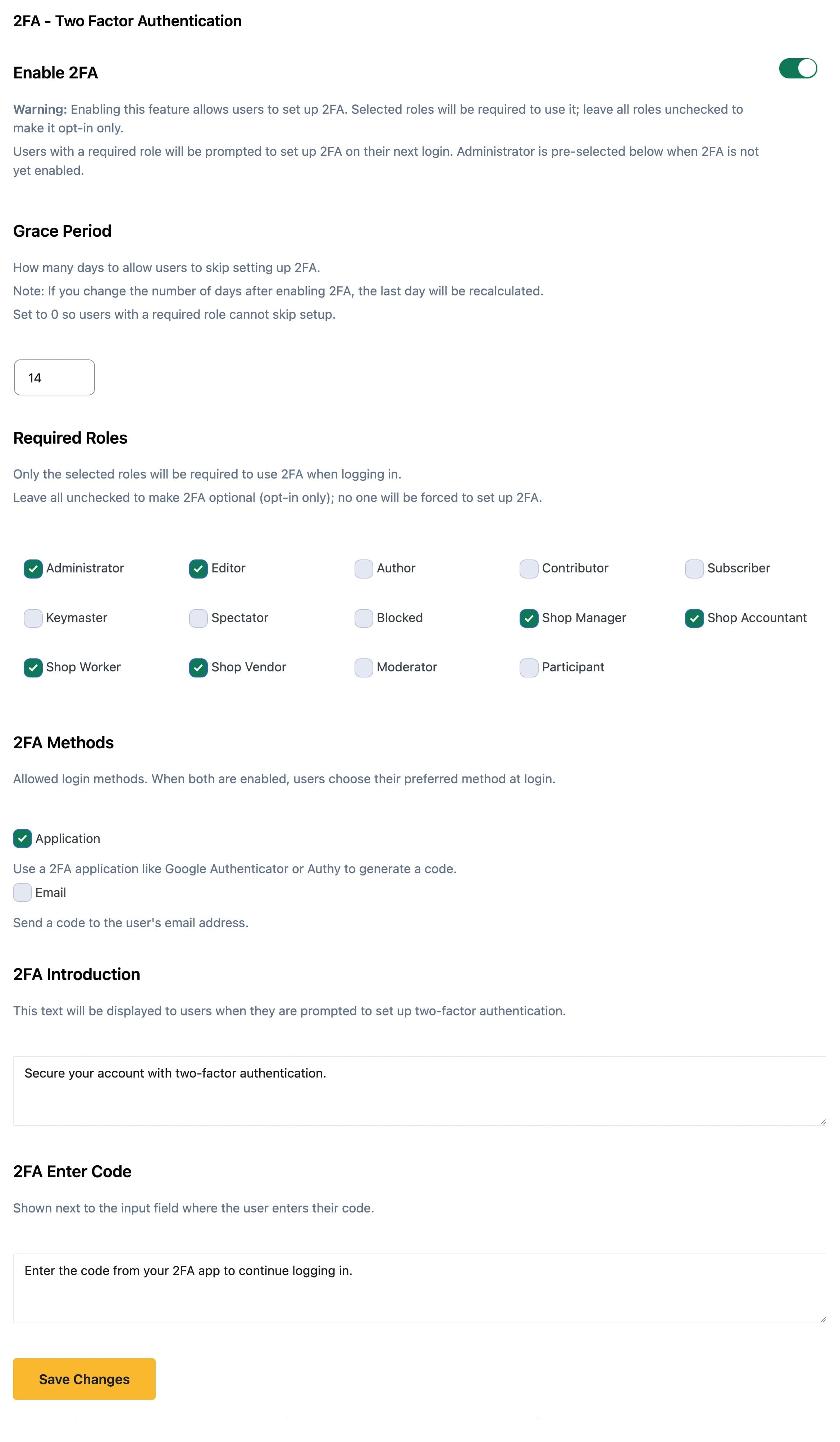
Admin field-by-field notes: set up 2FA in Security Ninja.
Test one admin account in a private window before you require the whole team.
When 2FA is on (and their role is required, or they opt in), login prompts them to enroll.
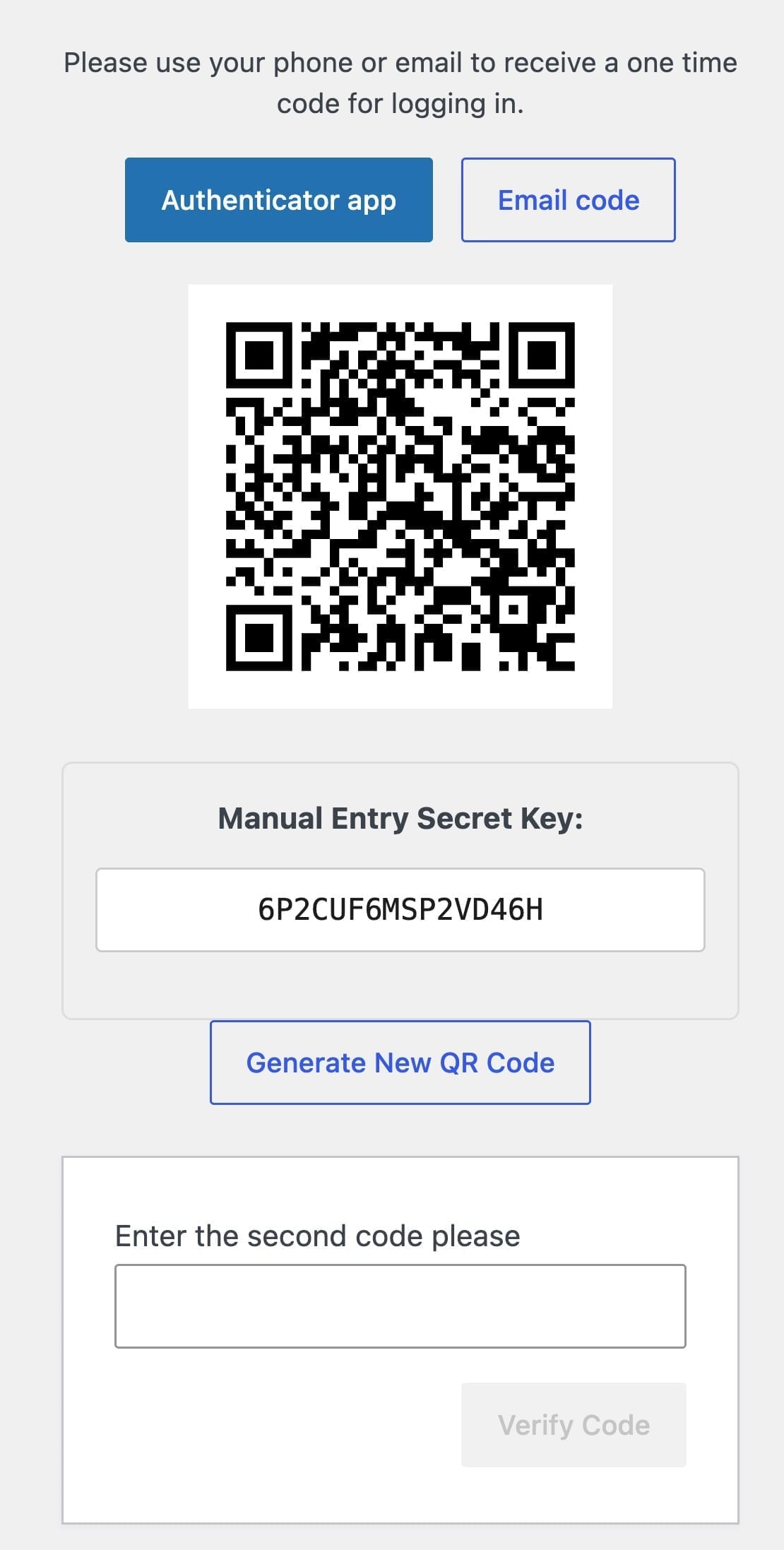
Authenticator app
Email codes
If you allowed email as a method, the user chooses Email code, sends a message to their inbox, and types that code on the login screen.
When both methods are allowed, the user picks a preference at login. The plugin remembers it.
User-facing steps with screenshots: set up and use 2FA as a user.
Require 2FA for people who can break the site:
Skip forcing it on every Subscriber. That creates support tickets without reducing much risk.
Agency rule: if a freelancer still has an administrator account, they enroll or they lose that role.
The grace period is how you avoid locking the office out on a Monday.
Tell the team in Slack or email before you drop grace to 0. Keep one extra administrator who already enrolled so you can recover others.
Security Ninja does not print a sheet of recovery codes. Recovery is admin-side:
If you are the only admin and you are locked out, use the secret access URL or hosting/SFTP. Do not turn 2FA off for the whole site as the first move.
2FA does not cap brute-force attempts by itself. Add login protection: failed-login limits, optional login URL rename, and fewer administrator accounts. Watch Events so repeated failures are visible.
Turn 2FA on for administrators, enroll one account yourself, then require the rest with a grace period. Authenticator apps are the default. Email codes help people who will not install an app. Keep an admin who can reset a lost phone. A password alone should not open wp-admin.
Found this useful? Share it.
In Security Ninja Pro, open Firewall, turn on Enable 2FA, pick authenticator app and/or email codes, choose which roles must enroll, set a grace period if you need one, then have each user complete setup at login. Test one administrator before you require everyone.
Require it for Administrators and anyone who can install plugins or edit code. Editors who publish on a store or agency site should usually enroll too. Subscribers rarely need it.
Not if you keep the grace period. Required-role users can skip setup for a set number of days (14 by default). Set grace to 0 only when those roles must enroll on the next login.
An administrator can reset that user’s 2FA from their WordPress profile so they can enroll again. For special cases, Bypass 2FA on the profile skips the prompt. Email codes are a fallback if you allow that method.
No. Two-factor authentication is a Security Ninja Pro feature. Pair it with failed-login limits on the same login protection suite.