When you generate a report from the AI Security Advisor, the plugin sends a privacy-safe summary of your site’s security data to the AI connector you selected under WordPress Connectors. Domains, URLs, IPs, usernames, and emails are not included. The finished report is stored locally on your site and shown on the Security Advisor page.
How to generate a report
- Go to Security Ninja → Security Advisor.
- In the full security report area, click Generate report.
- Wait while the plugin shows progress (preparing data, sending to AI, waiting for a response). The report appears on the page when it is ready.
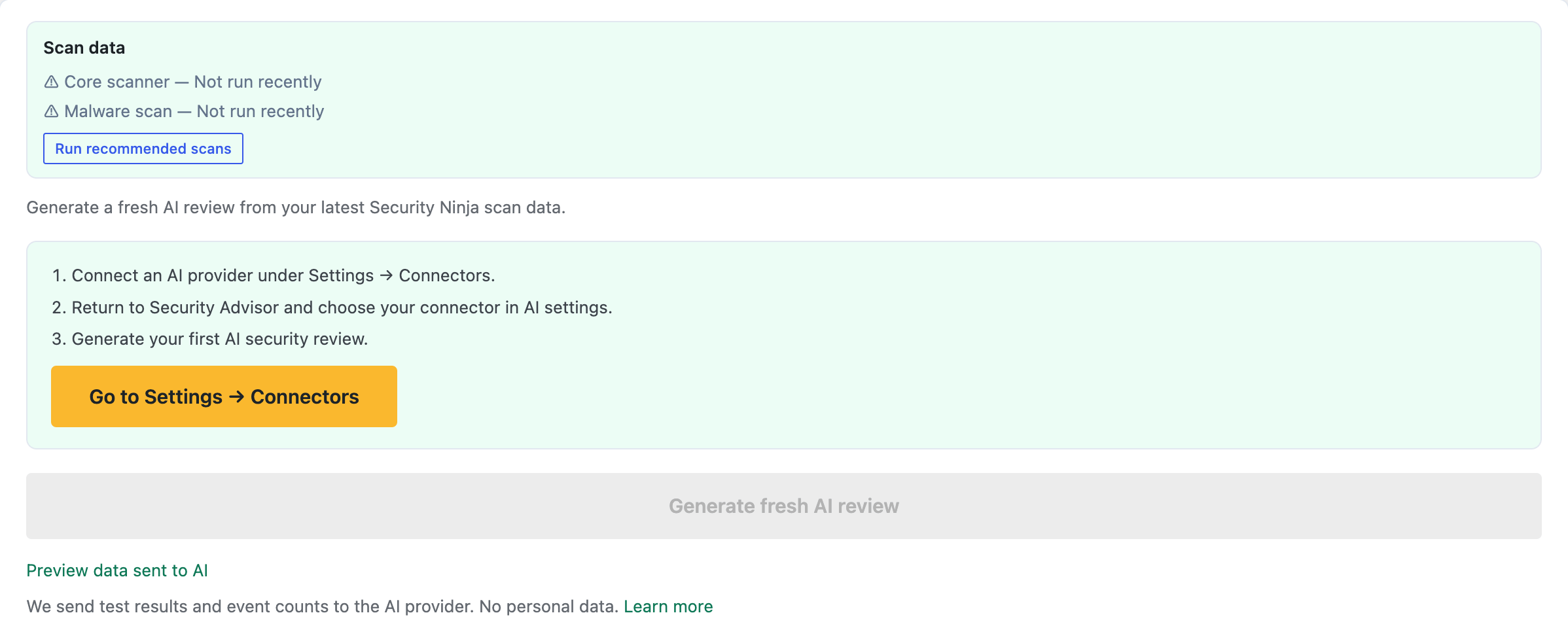
You can also open Preview data sent to AI before you generate a report.
What data is sent to the AI
Only structured security context is sent. No personally identifiable information is included:
- Security score (0-100) and counts of passing, warning, and failing tests.
- Test results: test IDs and status only (for example pass, fail, or warning). No test descriptions or file paths.
- Feature flags: whether the firewall, login protection, and two-factor authentication are enabled (on/off only).
- Aggregated event counts for the last 7 days: blocked logins, XML-RPC blocks, firewall events, failed logins. Optionally a short attack-activity summary (trend and a one-sentence reason).
- Plan tier (free or Pro) and report language (locale code) so the report can match your chosen language.
What is not sent: domains, site URLs, IP addresses, usernames, email addresses, file paths, or other identifying data.
Where the report is stored
- Each generated report is saved locally in your WordPress database in the
wf_sn_ai_reportstable. - The latest full report is shown on the Security Advisor page. Earlier reports stay in the local history until you clear AI history from the Security Advisor settings.
- Reports remain on your server. Only the privacy-safe input for that request is sent to the AI provider.

Report structure
The AI returns a structured report with:
- Executive summary: overall posture and recent attack-volume insight.
- Overview: short summary of security score and test results.
- Top improvements: prioritized, actionable recommendations.
- Activity (last 7 days): interpretation of blocked or failed events and what to do next.