Security advisorywp2shell: WordPress core vulnerability. Confirm every site is on 6.8.6, 6.9.5, 7.0.2, or newer.

Read the advisory

Account & license

Update payment method

Update your WP Security Ninja payment details. This guide covers accessing the Freemius User Dashboard, selecting the license, and entering new payment information.

There may be instances where you’d like to change the payment method you first used for WP Security Ninja. Whether you started with PayPal and now want to switch to a credit card, or vice versa, the process is straightforward.

First, log in to your Freemius User Dashboard. Once you’re in, look for the “Renewals & Billing” section. This is where you’ll find all the information about your current and past payments.

Selecting the License

Within the “Renewals & Billing” area, you’ll see a list of licenses associated with your account. Choose the license for which you wish to update the payment method.

Updating Your Payment Method

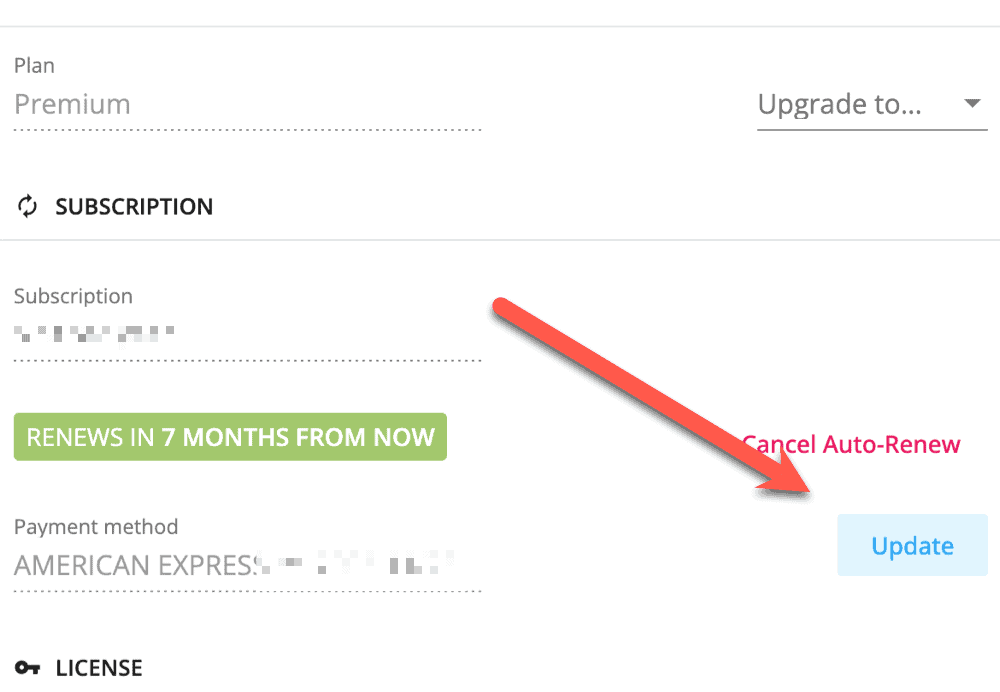
After selecting the appropriate license, click on the “Update” button.

Update payment method

You’ll be taken to a checkout page where you can enter your new payment details. Complete the checkout process with your new payment method.

Prorated Payments

Don’t worry about previous payments; the system will automatically prorate your last payment based on the next renewal date. This ensures that you’re not double-charged for the service.

Useful Resources

Still stuck? Get help or contact us.